
Imagine controlling all your smart lights with a single voice command. No more switching lights on and off one by one.
Whether you use Alexa or Google, grouping your smart lights can make your home feel smarter and your life easier. In this guide, you’ll learn exactly how to group your smart lights quickly and effortlessly. Ready to take control and brighten up your space with just a word?
Keep reading, and you’ll be mastering smart lighting in no time.
Credit: www.androidpolice.com
Setting Up Smart Lights
Smart lights make your home more convenient and energy-saving. You can control them using Alexa or Google.
Grouping your smart lights lets you turn on many lights at once. This guide helps you set up your smart lights step by step.
Choosing Compatible Smart Lights
Not all smart lights work with Alexa or Google. Choose lights that say they support these platforms.
Look for smart bulbs or light strips that connect to your voice assistant. Check the product details before buying.
- Check if the light supports Alexa or Google Assistant
- Pick lights with Wi-Fi or Bluetooth connection
- Consider the brightness and color options you want
Connecting Lights To Wi-fi
Your smart lights need Wi-Fi to work with Alexa or Google. Connect each light to your home network.
Use the manufacturer’s app to add the lights to Wi-Fi. Make sure your phone is on the same network.
- Turn on the smart light
- Open the app and select “Add Device”
- Follow the instructions to connect to Wi-Fi
- Repeat for each smart light
Installing Manufacturer Apps
Each brand has its own app to control the lights. Install the app from the App Store or Google Play.
The app helps you set up the lights and group them. You also use it to update the light’s software.
- Find the app for your smart light brand
- Create an account if needed
- Use the app to connect and name your lights
- Set up groups for easy control
Credit: www.online-tech-tips.com
Grouping Lights In Alexa
Grouping smart lights in Alexa helps you control many lights at once. You can turn them on or off with one command.
This guide shows how to group lights in the Alexa app. It covers adding, renaming, and using voice commands for groups.
Accessing The Alexa App
Open the Alexa app on your phone or tablet. Make sure you are signed in with your Amazon account.
Check that your smart lights are already added to the app. This lets you group them easily.
Creating A New Light Group
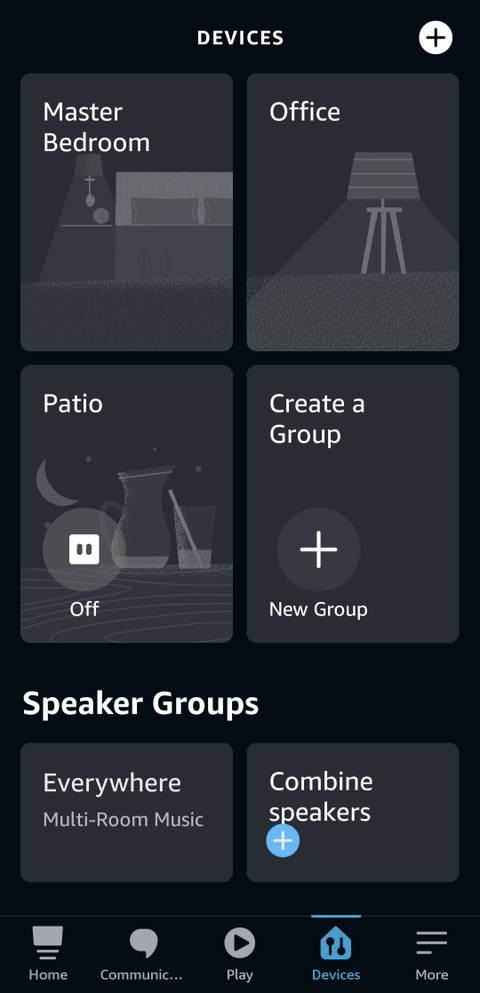
In the Alexa app, tap the Devices icon at the bottom. Then select the “+” button to create a new group.
Choose “Add Group” from the menu. Give your group a clear name, like “Living Room Lights”.
Adding Lights To The Group
After naming the group, the app shows a list of your smart lights. Select the lights to add to the group.
Tap “Save” to finish. The lights now respond together when you use Alexa.
Renaming And Managing Groups
Go to Devices, then Groups in the Alexa app. Choose the group you want to change.
You can rename the group or add and remove lights anytime. Save changes to update the group.
Using Voice Commands With Groups
Use Alexa voice commands to control your light groups easily. Say the group name in your command.
- “Alexa, turn on Living Room Lights.”
- “Alexa, dim Bedroom Lights to 50%.”
- “Alexa, turn off Kitchen Lights.”
Grouping Lights In Google Home
Grouping smart lights in Google Home makes controlling many lights easier. You can turn on or off all lights in a room with one command.
This guide shows how to group your smart lights using the Google Home app. You can set up, edit, and control light groups easily.
Opening The Google Home App
Start by opening the Google Home app on your phone or tablet. The app controls all your smart devices in one place.
Make sure you are signed in with your Google account. Your smart lights should be connected to the app already.
Setting Up Light Groups
To set up a new light group, tap the “Add” button in the app. Then choose “Create speaker group” or “Create a room.”
Name the group based on the room or area where the lights are. This helps to find and control the group later.
Assigning Lights To Groups
After creating the group, add your smart lights to it. Select the devices you want to control together.
- Tap on the group you made.
- Choose “Add devices.”
- Select the lights to include.
- Save your choices.
Editing And Deleting Groups
You can change a group’s name or devices anytime in the Google Home app. Open the group settings to make edits.
To delete a group, open its settings and select “Delete group.” This removes the group but not the lights themselves.
Controlling Groups With Voice
Use your voice to control light groups with Google Assistant. Say commands like “Turn on the living room lights.”
- “Turn off [group name] lights.”
- “Dim the [group name] lights to 50%.”
- “Set [group name] lights to warm white.”
Tips For Smart Light Grouping
Grouping smart lights in Alexa or Google helps control many lights at once. It makes managing your home lighting easier and faster.
This guide shares tips to improve your smart light grouping experience. Follow these tips to get smooth and organized light control.
Optimizing Group Names
Use clear and simple names for your light groups. This helps your voice assistant recognize commands easily.
Choose names that describe the room or function, like “Living Room” or “Bedroom Lights.” Avoid long or complex names.
- Keep names short and easy to say
- Use common words and room names
- Avoid special characters and numbers
- Be consistent with naming in both Alexa and Google apps
Syncing Across Devices
Make sure your smart lights and apps are connected to the same Wi-Fi network. This keeps groups synced across devices.
Check the app settings often to update group information. Syncing helps all devices respond correctly to your commands.
- Connect all devices to one Wi-Fi network
- Update the Alexa or Google Home app regularly
- Refresh device lists in the app if groups don’t show
- Restart your smart hub or router if syncing fails
Troubleshooting Common Issues
If your grouped lights do not respond, check their connection status. Lights offline won’t work in groups.
Sometimes, voice commands may not work if group names are confusing. Rename groups for better results.
- Check if all lights are powered on
- Make sure lights are connected to your smart hub
- Rename groups if voice commands fail often
- Remove and re-add devices to the group if needed
Advanced Smart Light Controls
Grouping smart lights in Alexa or Google helps control many lights at once. It makes managing your home lighting easier and faster.
Advanced controls let you set schedules, create routines, and link lights with other smart devices. These features improve your smart home experience.
Scheduling Light Groups
You can set specific times for your light groups to turn on or off. Scheduling helps save energy and fits your daily routine.
Both Alexa and Google Assistant let you pick days and times for your schedules. This keeps your home well-lit only when needed.
- Choose the light group you want to schedule
- Pick the time to turn lights on or off
- Select days for the schedule to repeat
- Save the schedule and test it
Creating Routines And Automations
Routines let you control light groups with a single command. You can also automate lights to react to events or times.
For example, set lights to dim when you say “Good night” or turn on when you arrive home. This adds comfort and convenience.
- Open the Alexa or Google app
- Create a new routine or automation
- Add actions like turning on or dimming lights
- Choose triggers like voice commands or schedules
- Save and try your routine
Integrating With Other Smart Devices
Smart light groups can work with other devices like sensors or smart plugs. This creates a connected home environment.
For example, motion sensors can turn on your light group when you enter a room. Smart plugs can control lamps in the group.
- Link your smart lights with sensors or plugs in the app
- Set actions based on device triggers
- Test to make sure devices work together

Credit: www.reddit.com
Frequently Asked Questions
How Do I Group Smart Lights In Alexa?
Open the Alexa app, tap Devices, then Groups. Choose Create Group, name it, and add your smart lights. Save to control them together via voice or app.
Can I Group Smart Lights In Google Home?
Yes, open Google Home app, tap Add, then Create Speaker Group. Select your smart lights and save. Control all lights as one group using Google Assistant.
Why Group Smart Lights In Alexa Or Google?
Grouping smart lights simplifies control. You can turn on/off, dim, or change colors for all lights simultaneously. It enhances convenience and improves smart home management.
What Smart Lights Work With Alexa And Google?
Most popular brands like Philips Hue, LIFX, and TP-Link work with both Alexa and Google. Check compatibility before purchasing to ensure smooth integration and grouping.
Conclusion
Grouping smart lights in Alexa or Google is simple and effective. It enhances your smart home experience. Now, you can control multiple lights with one command. This saves time and adds convenience to your daily life. Remember to name your groups clearly.
This ensures easy voice commands. Regularly update your devices for smooth functioning. Experiment with different settings to find what suits you best. Enjoy the ease and comfort of smart lighting. With these steps, managing your smart lights becomes effortless. Happy lighting!
16 min read