
Is your WiFi extender acting up or your smart home devices not responding like they should? You’re not alone, and the good news is you don’t need to call a technician just yet.
With a few simple troubleshooting tips, you can fix common problems quickly and get your devices working smoothly again. This guide will show you easy steps you can take right now to improve your WiFi signal and smart device performance—saving you time, money, and frustration.
Keep reading to unlock solutions that actually work for your home setup.
Common Wifi Extender Issues
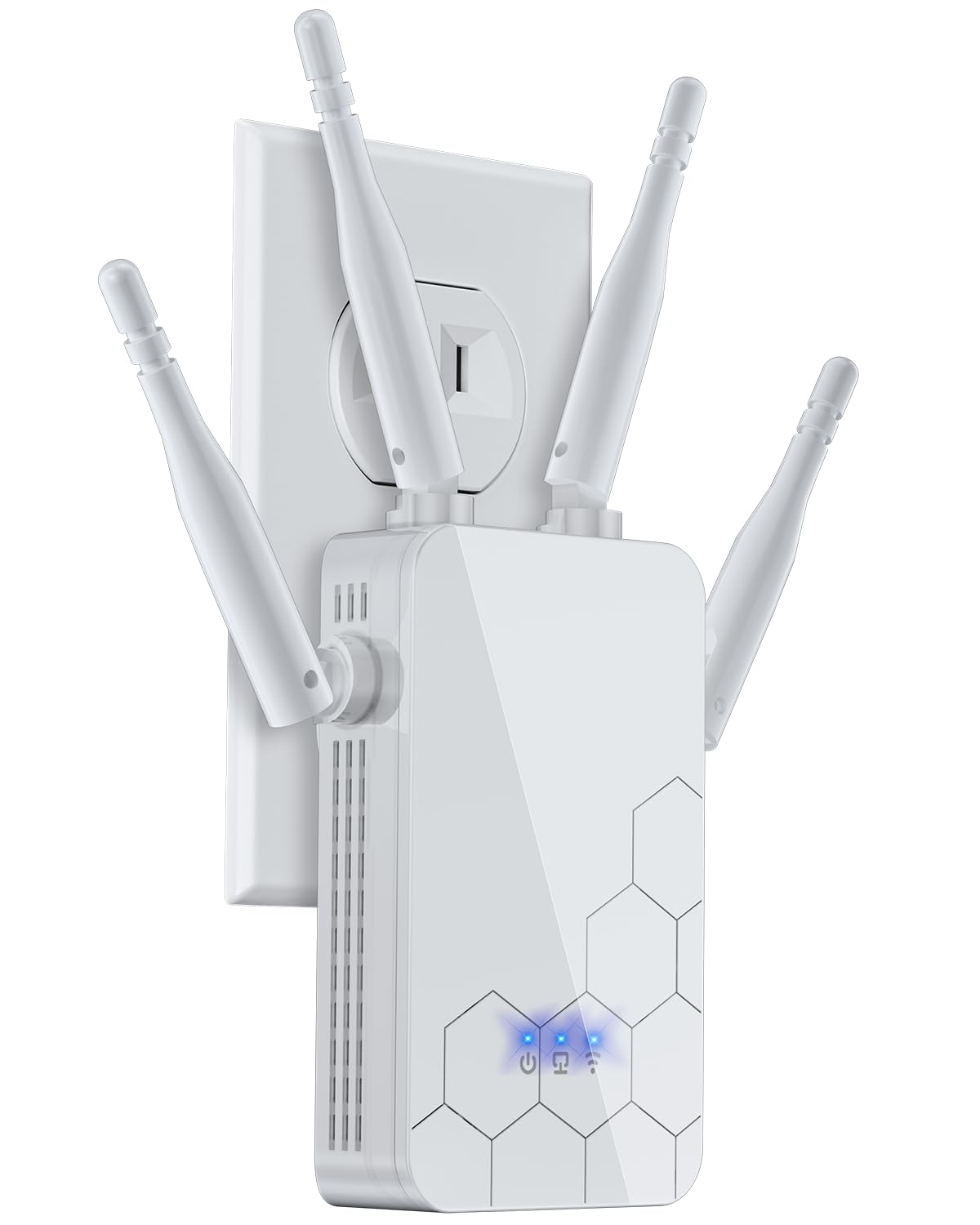
Wifi extenders help boost internet signals in your home. They can have some common issues though. Learning how to fix these can save you time and frustration.
Here are some simple tips to troubleshoot common problems with wifi extenders and smart home devices.
Connection Drops
Connection drops can disrupt your online activities. This happens when your extender is too far from the router. It may also be due to interference from other devices.
Try placing the extender closer to your router. Avoid placing it near cordless phones or microwaves.
- Move extender within 20 feet of the router
- Avoid placing near metal objects
- Check for firmware updates
Slow Speeds
Slow speeds can be frustrating when streaming or gaming. This can be due to too many devices using the network. It could also be because of outdated firmware.
Disconnect devices that are not in use. Ensure your extender has the latest updates installed.
- Limit connected devices
- Update firmware regularly
- Place extender in open areas
Device Not Detected
Sometimes your device may not detect the wifi extender. This can occur if the extender is not properly set up. It can also be due to incorrect network settings.
Check that the extender is powered on. Ensure it is connected to your network correctly.
- Restart the extender
- Verify network name and password
- Reset to factory settings if needed

Credit: www.sumzeroenergysystems.com
Quick Fixes For Wifi Extenders
Wifi extenders help improve your wireless signal. Sometimes they stop working well.
Try these simple tips to fix common problems with your wifi extender fast.
Rebooting The Extender
Rebooting the extender can solve many connection issues. It refreshes the device’s settings.
Unplug the extender from power for 10 seconds. Then plug it back in and wait for it to restart.
Adjusting Placement
Place the extender where it gets a strong signal from your router. Avoid walls and metal objects.
Try moving the extender closer to the router or to an open area. This can improve the signal strength.
- Keep the extender halfway between router and dead zones
- Avoid placing near microwaves or cordless phones
- Higher locations often provide better coverage
Updating Firmware
Firmware updates fix bugs and improve performance. Check for updates regularly.
Use the extender’s app or website to find and install the latest firmware version.
- Connect to the extender’s network
- Open the device’s settings page
- Look for “Firmware Update” or “System Update”
- Follow instructions to download and install updates
Troubles With Smart Home Devices
Smart home devices make life easier but can sometimes stop working. Many people face problems getting their devices to respond or connect.
Knowing simple troubleshooting tips can help fix issues quickly. This guide covers common troubles and how to solve them at home.
Unresponsive Devices
Devices that do not respond are a common problem. This can happen if the device loses power or gets stuck.
Try restarting the device by turning it off and on. Check if the power source is connected well.
- Unplug and plug the device back in
- Check batteries if the device uses them
- Reset the device to factory settings if needed
Connectivity Problems
Smart devices need a good Wi-Fi connection to work. Weak or lost Wi-Fi causes devices to disconnect or act slow.
Move the device closer to the Wi-Fi router or use a Wi-Fi extender. Also, check that your internet is working well.
- Restart your Wi-Fi router
- Reduce obstacles between device and router
- Update device firmware for better connection
App Sync Issues
Smart home devices often need an app to control them. Sometimes, the app does not sync with the device properly.
Make sure the app and device are on the same Wi-Fi network. Update the app to the latest version for smooth syncing.
- Close and reopen the app
- Log out and log back into the app
- Reinstall the app if problems continue
Simple Solutions For Smart Devices
Smart home devices and WiFi extenders sometimes stop working well. Small problems can cause big issues.
There are easy ways to fix common issues at home. These tips help you save time and avoid extra help.
Restarting Devices
Restarting your device often solves connection problems. It clears temporary errors and refreshes the system.
Turn off your device, wait 10 seconds, and turn it back on. This simple step can fix many issues quickly.
Checking Network Settings
Check your WiFi and network settings if devices don’t connect. Wrong settings stop devices from working well.
- Make sure WiFi is on and connected
- Check the password is correct
- Confirm the device is on the right network
- Look for IP address conflicts or issues
Resetting To Factory Defaults
Resetting your device to factory settings removes all changes. Use this when other fixes do not work.
Press the reset button on the device for 10 seconds. Follow the instructions to set it up again.
- Back up any important settings first
- Know that all custom settings will be lost
- Reconfigure your device after reset
Optimizing Your Home Network
Wifi extenders and smart home devices need a strong network. Optimizing your home network helps them work well.
Small changes can improve speed and reduce connection problems for all your devices.
Choosing The Best Channel
Wifi signals use channels to send data. Choosing the right channel can reduce slow speeds and interruptions.
Use apps or your router settings to find a channel with less traffic. This helps your devices connect better.
- Check for channels with fewer nearby networks
- Pick 1, 6, or 11 on 2.4 GHz for less overlap
- Try different channels if your network is slow
Reducing Interference
Other devices can block or weaken your wifi signal. This interference causes slow or lost connections.
Keep your router and extenders away from microwaves, cordless phones, and thick walls to reduce interference.
- Place devices in open areas, not behind furniture
- Keep wifi devices away from metal objects
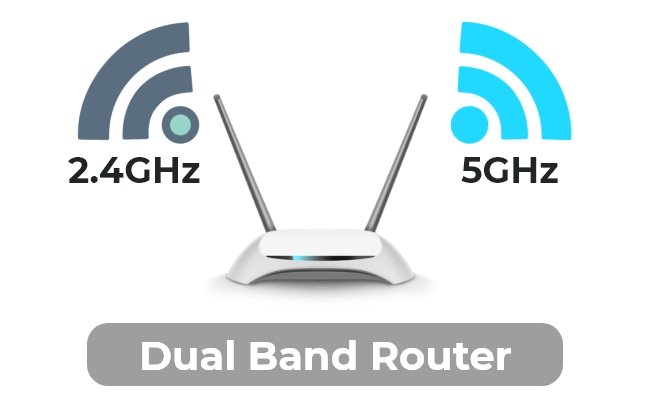
- Use 5 GHz wifi for less interference in crowded areas
Securing Your Network
Secure networks stop strangers from using your wifi. This keeps your data safe and speeds stable.
Use strong passwords and update your router’s security settings often. This blocks unwanted users from joining.
- Set WPA3 or WPA2 encryption on your router
- Change default router passwords to strong ones
- Turn off WPS to avoid easy access
- Keep firmware updated for security patches

Credit: www.alotceriot.com
When To Seek Professional Help
Sometimes fixing WiFi extenders and smart home devices is simple. You can try basic troubleshooting steps on your own. But some problems need expert help.
Knowing when to call a professional saves time and avoids more damage. This guide explains when you should get help.
Persistent Connectivity Issues
If your devices keep losing connection after resets, check your setup. Persistent problems may mean deeper issues.
When simple fixes like restarting do not work, it is time to get help. Professionals can find hidden network problems.
- Connections drop regularly without clear cause
- WiFi signal is weak despite proper placement
- Devices fail to connect even after setup
Hardware Failures
Hardware parts can break or wear out over time. If your device won’t turn on or shows error lights, hardware may be the cause.
Trying to fix hardware problems yourself can cause more damage. A professional can test and replace faulty parts safely.
- Device does not power up
- Unusual noises or smells from the device
- Visible damage to cables or ports
- Device overheats quickly
Complex Network Setups
Large or complicated networks can be hard to manage. Multiple extenders, routers, and smart devices need expert configuration.
If your home network includes many devices or special settings, get professional help. They optimize your network for best performance.
- Multiple WiFi extenders and routers in use
- Smart home devices from different brands
- Advanced security or custom network rules
- Frequent changes to network layout or devices

Credit: www.youtube.com
Frequently Asked Questions
How To Fix Wifi Extender Not Connecting?
Restart your WiFi extender and router. Check signal strength and reset the extender if needed. Ensure proper placement away from interference.
Why Is My Smart Home Device Offline?
Check your WiFi connection and ensure the device is within range. Restart the device and router to refresh connectivity.
How To Improve Wifi Extender Signal Strength?
Place the extender halfway between router and device. Avoid walls or large objects. Update extender firmware regularly for better performance.
What Causes Smart Devices To Lose Wifi Frequently?
Interference, outdated firmware, or weak signals often cause disconnections. Keep devices updated and reduce interference from other electronics.
Conclusion
Troubleshooting wifi extenders and smart devices does not need to be hard. Simple steps can fix many common problems quickly. Check connections, restart devices, and update software often. Keep your home network strong and reliable. Small efforts help keep your smart devices working well.
Try these tips before calling for help. Stay patient, and your devices will perform better. Good wifi means better smart home experience.
15 min read