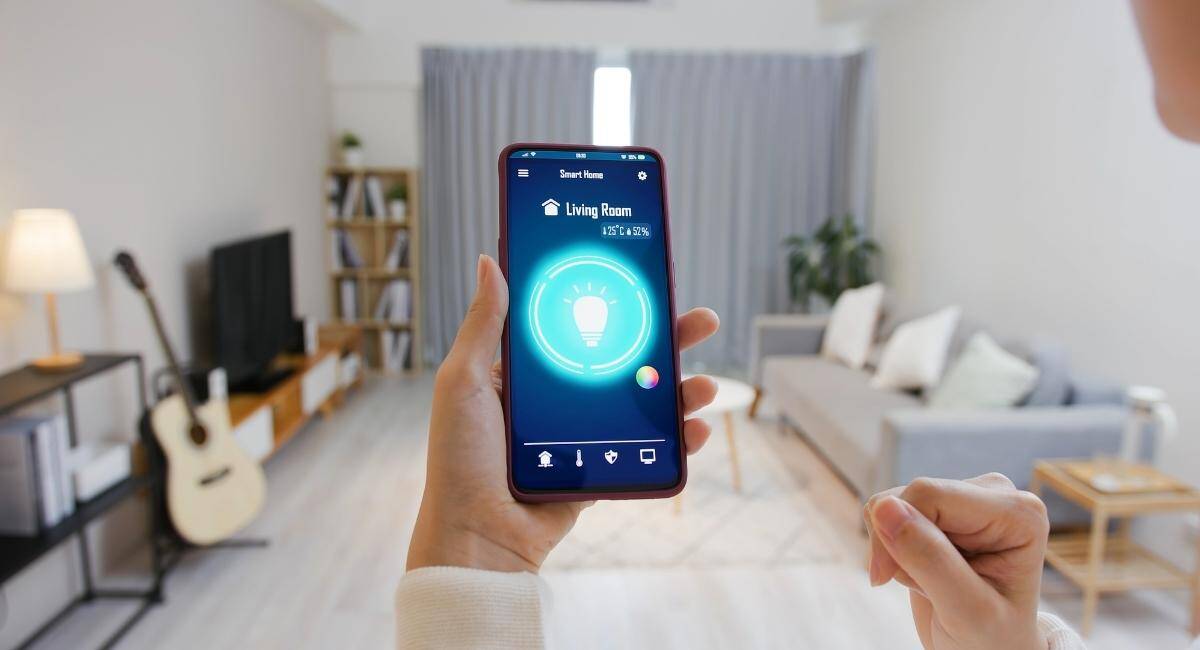

Imagine having complete control over your home right from your pocket. With just a few taps on your smartphone, you can adjust the lights, lock the doors, or even set the perfect temperature before you walk in.
Sounds convenient, right? If you want to make your life easier and smarter, learning how to control your smart home with your smartphone is the key. You’ll discover simple steps and insider tips that will turn your phone into a powerful tool for managing your home effortlessly.
Ready to unlock the full potential of your smart devices? Let’s dive in.
Choosing The Right Smart Home Devices
Controlling your smart home with a smartphone is easy. The right devices make your home smarter and more convenient.
Choosing the correct smart home gadgets is important. It helps you avoid problems and enjoy the full benefits.
Popular Smart Home Gadgets
Many smart devices work well with smartphones. Think about what fits your daily needs.
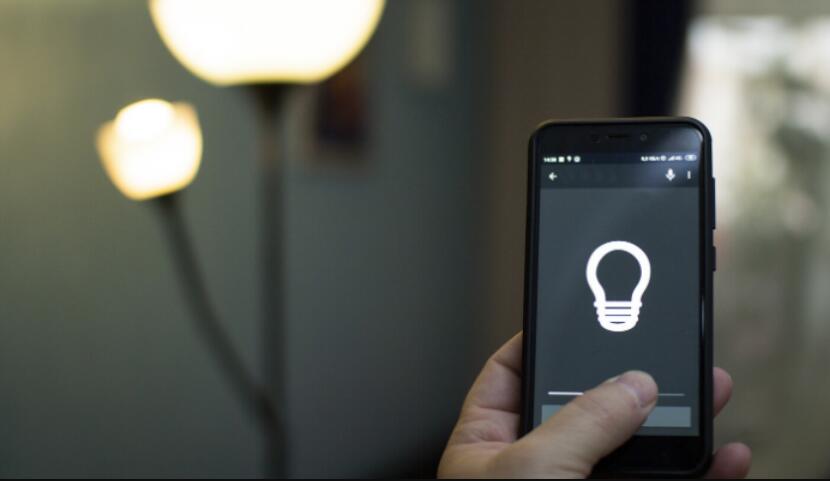
- Smart lights let you change colors and brightness easily.
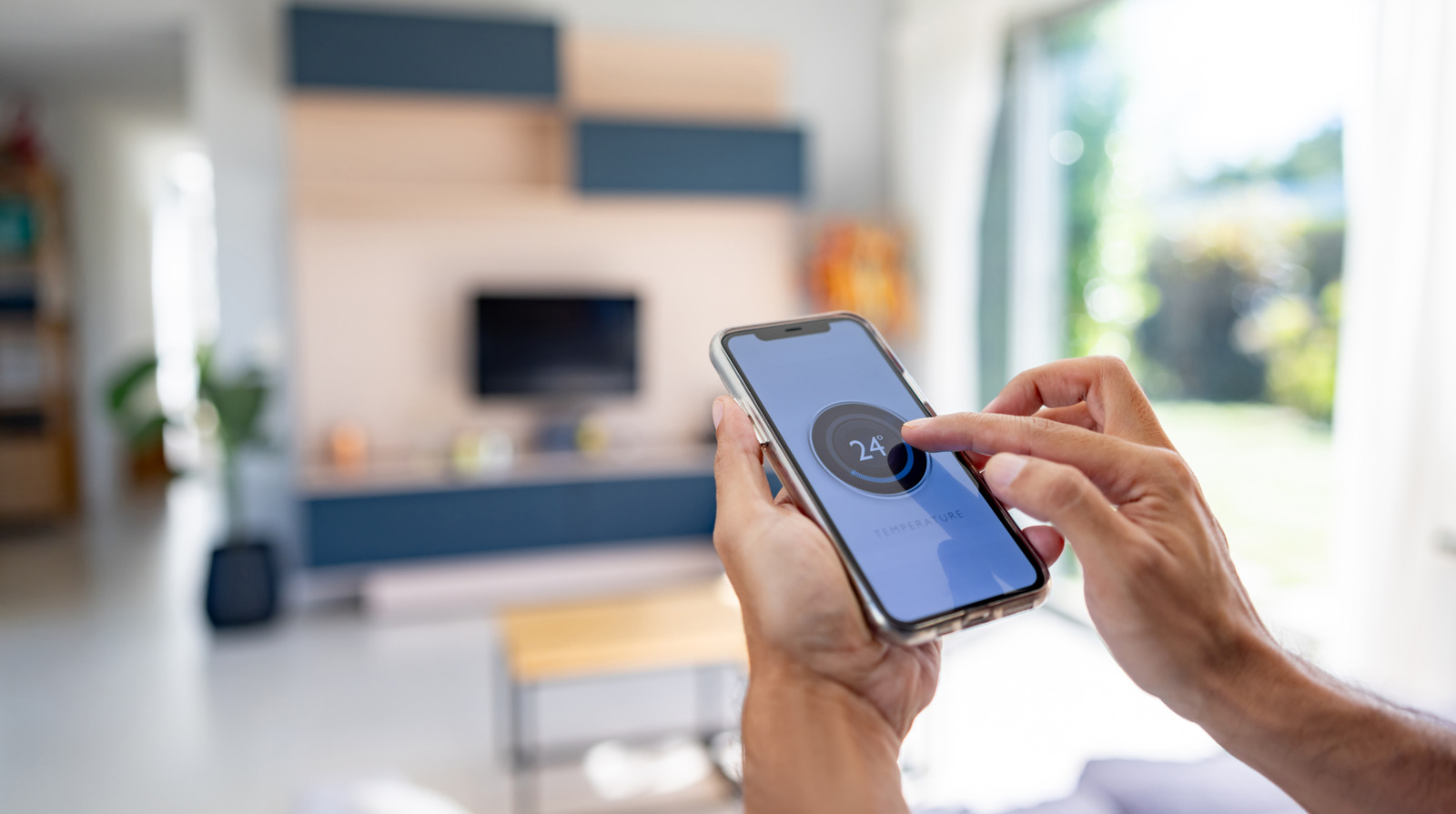
- Smart thermostats control home temperature from anywhere.
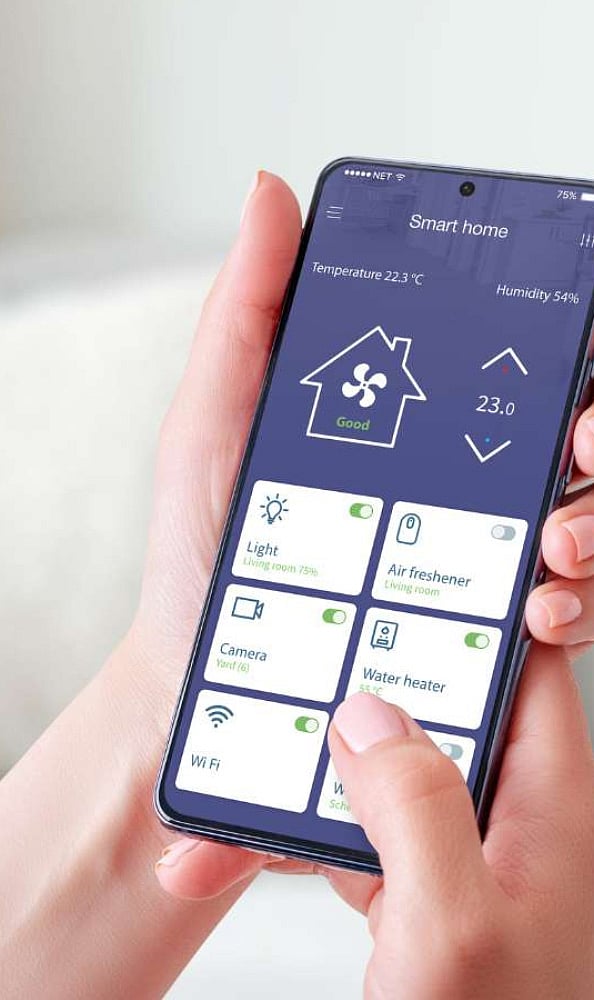
- Security cameras keep your home safe and send alerts.
- Smart plugs can turn devices on or off remotely.
- Voice assistants help you control devices by talking.
Compatibility With Smartphones
Not all smart devices work with every smartphone. Check if your phone supports the device app.
Most devices support Android and iOS. Some also work with specific voice assistants like Alexa or Google Assistant.
- Look for apps in your phone’s app store.
- Check if the device uses Wi-Fi or Bluetooth.
- Confirm if voice control works with your system.
- Read reviews to see if users report phone issues.
Budget Considerations
Smart home devices vary in price. Decide how much you want to spend before buying.
Some gadgets cost more but offer extra features. Others are cheaper and cover basic needs.
- Set a budget for each type of device.
- Prioritize devices that improve safety and comfort.
- Look for sales or bundles to save money.
- Remember to include costs for any subscriptions.
Credit: www.analyticsinsight.net
Setting Up Your Smart Home Network
Controlling your smart home with a smartphone starts with a good network. Your smart devices need a strong and safe connection to work well.
This guide helps you set up your smart home network for smooth control and easy device connection.
Reliable Wi-fi Connection
A strong Wi-Fi signal helps your smart devices work without interruptions. Place your router in a central spot in your house.
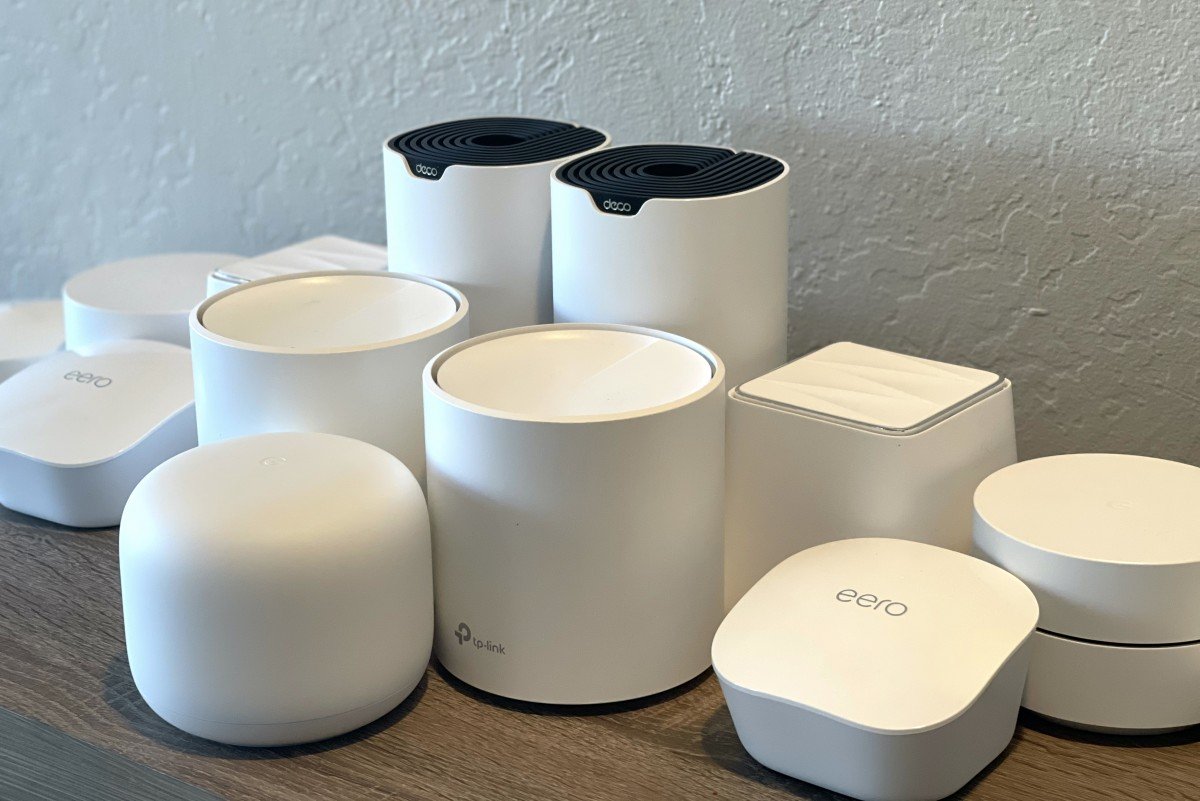
Use a Wi-Fi system that covers all rooms where you have smart devices. Avoid walls or objects that block signals.
- Choose a router with good range and speed
- Place router away from metal or thick walls
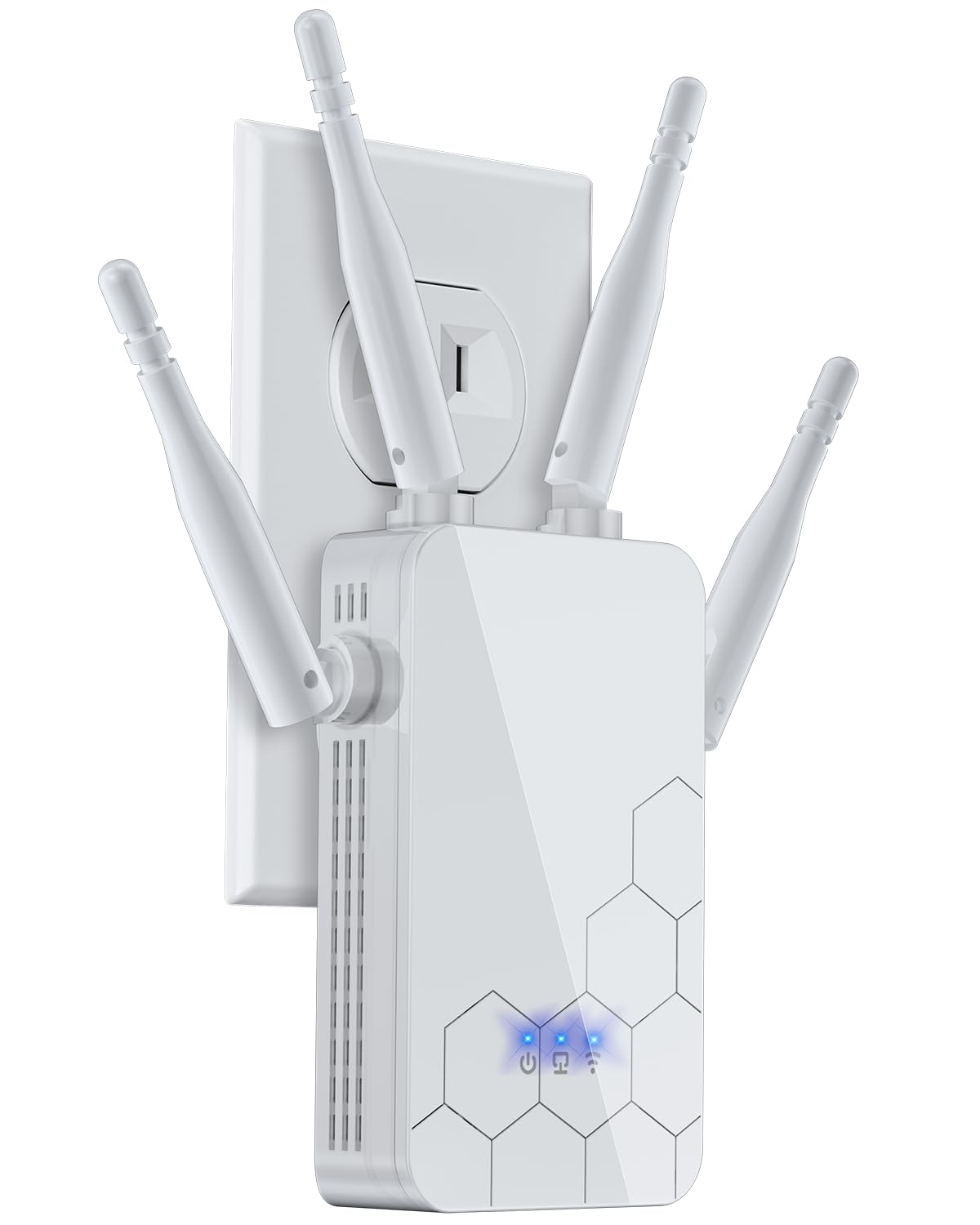
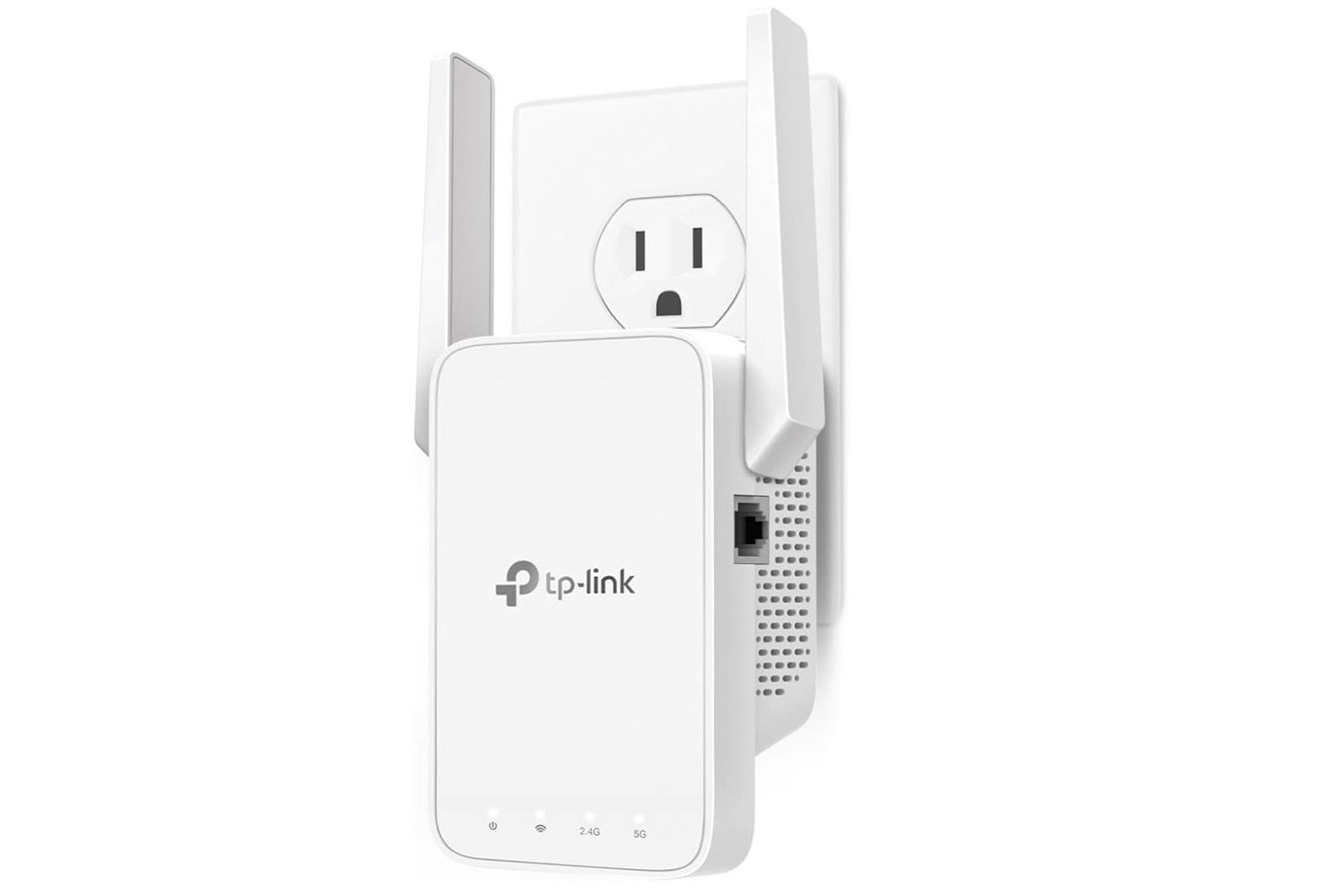
- Consider Wi-Fi extenders for large homes
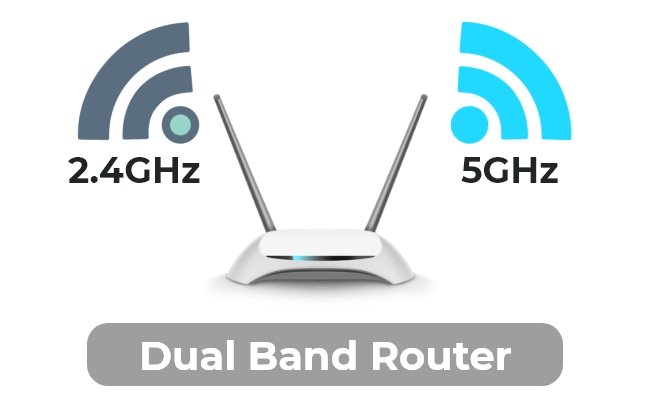
- Use 5 GHz band for faster connections if possible
Securing Your Network
Keep your smart home safe by protecting your Wi-Fi network. Use strong passwords that are hard to guess.
Enable network encryption like WPA3 or WPA2 to stop outsiders from accessing your devices.
- Set a unique, strong Wi-Fi password
- Update your router’s firmware regularly
- Disable WPS (Wi-Fi Protected Setup) for security
- Use a guest network for visitors
Connecting Devices To Network
Connect each smart device to your Wi-Fi network for smartphone control. Follow the device instructions carefully.
Use the smartphone app that matches your smart home system to add devices easily and manage them.
- Turn on the smart device and put it in pairing mode
- Open the smartphone app and select “Add Device”
- Choose your Wi-Fi network and enter the password
- Wait for the device to connect and test it from the app
Installing Smart Home Apps
Controlling your smart home with a smartphone starts with installing the right apps. These apps connect your phone to your smart devices.
Once installed, you can manage lights, locks, cameras, and more from one place.
Top Apps For Smart Home Control
Many apps let you control smart home devices. Choose one that fits your devices and needs.
- Google Home: Works with many smart devices and has voice control.
- Amazon Alexa: Controls smart devices using Alexa voice commands.
- Apple HomeKit: Best for Apple users to control devices securely.
- Samsung SmartThings: Supports a wide range of devices and automation.
App Permissions And Settings
Smart home apps need certain permissions to work well. These include access to your location, camera, or microphone.
Check app settings to allow only what is necessary for your devices to function.
- Location: Helps apps control devices based on your presence.
- Camera and Microphone: Needed for video or voice control features.
- Notifications: Keep you informed about device status or alerts.
Customizing App Interfaces
Most smart home apps let you change how the controls look. You can add or remove devices on the main screen.
Customizing makes it easier to find and control devices you use most.
- Create groups for devices in the same room.
- Use widgets or shortcuts for quick access.
- Change themes or layouts to suit your style.
Controlling Devices With Voice Assistants
Using voice assistants makes controlling smart home devices easy. You can use simple voice commands to manage lights, locks, and more.
Smartphones connect to voice assistants like Alexa, Google Assistant, and Siri. These tools help you control devices hands-free.
Integrating Alexa, Google Assistant, And Siri
Alexa works through the Amazon Alexa app on your phone. Link your smart devices in the app to start voice control.
Google Assistant comes with most Android phones. You can add smart devices in the Google Home app to control them by voice.
Siri works with Apple devices. Use the Home app to add smart home devices and control them using voice commands with Siri.
- Download and open the device’s app
- Connect your smart devices to the app
- Enable voice assistant skills or permissions
- Link your device accounts with the voice assistant
Setting Up Voice Commands
Start by naming your smart devices clearly. Use simple names to make voice commands easier.
Create custom commands if your voice assistant supports them. This helps control multiple devices with one command.
- Use clear, short phrases for commands
- Test commands to see if devices respond
- Group devices by room for easier control
- Set routines for daily tasks
Troubleshooting Voice Control
If your voice commands do not work, check your internet connection first. A poor connection can cause issues.
Make sure your smart devices and apps are updated. Outdated software can stop voice control from working properly.
- Restart your smartphone and smart devices
- Check if the voice assistant has permission to control devices
- Verify device names match your voice commands
- Re-link devices in the voice assistant app if needed
Automating Daily Tasks
Smartphones make controlling smart homes easy. You can automate daily tasks to save time and effort.
Using your phone, you can set your home to adjust automatically. This helps create comfort and improve efficiency.
Creating Schedules And Routines
Schedules let your devices work at set times. You can program lights, thermostats, and appliances to turn on or off.
Routines combine multiple actions into one command. For example, a “Good Morning” routine can open blinds and start coffee.
- Set lights to turn on at sunset
- Schedule thermostat to lower at night
- Create morning routines for multiple devices
Using Geofencing Features
Geofencing uses your phone’s location to control devices. Your home can react when you leave or arrive.
This feature can turn off lights and lock doors when you leave. It can also turn on heat or air conditioning when you return.
- Set home to sleep mode when you leave
- Turn on security cameras when away
- Activate heating before you arrive
Managing Scenes And Triggers
Scenes group device settings for different moods or activities. Triggers start these scenes automatically or by command.
You can create a “Movie Night” scene to dim lights and close blinds. Triggers can be a schedule or voice command.
- Build scenes for relaxing, working, or sleeping
- Use triggers like time or sensor detection
- Control scenes quickly from your smartphone
Enhancing Security Through Smartphone Control
Smartphones let you control your home security from anywhere. You can watch your home and get alerts instantly.
Using a smartphone helps keep your home safe and gives you peace of mind.
Remote Monitoring And Alerts
You can check your home cameras on your phone anytime. This helps you see what is happening in real time.
Smartphone alerts warn you about unusual activities right away. You will know if there is a break-in or other issues.
- View live video feeds remotely
- Receive instant motion or sound alerts
- Check past recordings on your phone
Controlling Locks And Cameras
You can lock or unlock your doors using your smartphone. This helps you control who enters your home.
Adjust camera angles or turn cameras on and off with your phone. This gives you full control over your security devices.
- Lock or unlock doors remotely
- Enable or disable cameras as needed
- Adjust camera settings from your phone
Privacy Best Practices
Use strong passwords for your security apps. This stops others from accessing your home system.
Keep your phone’s software updated to protect your privacy. Avoid sharing your login details with others.
- Create unique, strong passwords
- Update apps and phone software regularly
- Limit who can access your security system
Troubleshooting Common Issues
Using a smartphone to control your smart home is easy. Sometimes, things do not work as expected. This guide helps you fix common problems.
Follow these tips to solve issues and keep your smart home running smoothly.
Connectivity Problems
Smart devices need a strong Wi-Fi or Bluetooth connection. If your phone cannot connect, check your network first.
Restart your router and move closer to the device. Make sure your phone’s wireless is turned on.
- Check Wi-Fi or Bluetooth settings on your phone
- Restart your router or access point
- Bring your phone closer to the smart device
- Turn off airplane mode or other network blockers
App Crashes And Updates
Apps can stop working or crash if they are outdated or buggy. Make sure your smart home app is up to date.
If the app crashes, try closing it and opening again. Reinstall the app if problems continue.
- Check for app updates in your app store
- Close and reopen the app
- Restart your smartphone
- Uninstall and reinstall the app if needed
Device Sync Failures
Sometimes your phone and smart devices do not sync. This can stop commands from working.
Try to resync your devices by reconnecting or restarting them. Make sure they are on the same network.
- Restart both your phone and smart device
- Ensure devices use the same Wi-Fi network
- Remove and add the device again in the app
- Check device batteries or power supply
Credit: www.slashgear.com
Credit: www.blackview.hk
Frequently Asked Questions
How Do I Connect My Smartphone To Smart Home Devices?
To connect, install the device’s app on your smartphone. Follow the setup instructions to link devices via Wi-Fi or Bluetooth. Ensure both your phone and smart devices are on the same network for seamless control.
Which Apps Are Best For Smart Home Control?
Popular apps include Google Home, Amazon Alexa, and Apple HomeKit. They offer user-friendly interfaces and broad device compatibility. Choose an app based on your smart devices and preferred ecosystem.
Can I Control Smart Home Devices Remotely?
Yes, with internet connectivity, you can control devices from anywhere. Use the smartphone app to manage lights, security, and appliances remotely, ensuring convenience and security even when away.
How Secure Is Smartphone Control For Smart Homes?
Smart home apps use encryption and authentication to protect your data. Regularly update apps and use strong passwords for enhanced security. Avoid public Wi-Fi when controlling devices for safer access.
Conclusion
Smartphones make smart home control easy and efficient. With just a few taps, you can manage lights, temperature, and security. This convenience enhances daily routines. It helps save time and energy. Smart home apps offer customization to suit your lifestyle.
This technology also ensures peace of mind. Knowing you can monitor your home anytime brings comfort. Start simple and explore features gradually. Soon, managing your smart home becomes second nature. Embrace the ease and enjoy a more connected living space.
Your smartphone is a powerful tool for a smarter home.
20 min read