
Are your smart lights acting up and refusing to respond? It’s frustrating when your smart home stops working the way it should, especially when the lights won’t turn on or change colors as you expect.
But don’t worry—you’re not alone, and you don’t have to live with the problem. You’ll discover simple, clear steps to get your smart lights back to normal quickly. Whether you’re a tech beginner or just need a quick fix, these tips will save you time and hassle.
Ready to bring your smart lights back to life? Let’s dive in!

Credit: www.reddit.com
Common Causes Of Unresponsive Smart Lights
Smart lights can stop working or fail to respond for different reasons. Understanding these causes helps fix the problem quickly.
This guide explains common reasons why smart lights become unresponsive and what to check for each cause.
Power Supply Issues
Smart lights need a stable power source to work. If the power is off or interrupted, the lights won’t respond.
Check for loose connections, blown fuses, or switches turned off. Sometimes, power surges can damage the bulbs.
- Ensure the light switch is on
- Check if the circuit breaker tripped
- Inspect wiring for damage or loose ends
- Replace bulbs if they show physical damage
Connectivity Problems
Smart lights connect to your home network or hub. Poor or lost connection makes the lights unresponsive.
Check if your Wi-Fi is working and the light is in range. Signal interference can cause connection drops.
- Restart your Wi-Fi router
- Move the light closer to the router or hub
- Remove devices causing signal interference
- Check if the hub or bridge is powered on
App And Firmware Glitches
Smart light apps and firmware control the lights. Bugs or outdated versions can cause unresponsiveness.
Update the app and light firmware regularly. Restart the app and device to clear temporary errors.
- Check for app updates in your app store
- Update the smart light firmware via the app
- Close and reopen the control app
- Restart the smart light bulb or device
Compatibility Concerns
Not all smart lights work with every system or app. Compatibility issues can stop lights from responding.
Make sure your smart light matches your hub, app, or voice assistant before setup.
- Check the light’s supported platforms
- Use the correct app recommended by the manufacturer
- Confirm the light works with your voice assistant
- Replace incompatible bulbs with supported models
Basic Troubleshooting Steps
Smart lights sometimes stop working or do not respond. You can fix many issues by checking simple things first. Follow these basic steps to get your smart lights working again.
These steps do not need special tools. They help solve common problems fast and easy.
Check Power Connections
Make sure your smart light is connected to power. If the bulb or fixture is loose, it will not work.
Look for any broken wires or power outages. Check the switch and socket as well.
- Ensure the light bulb is screwed in tightly
- Check the wall switch is turned on
- Look for any damaged cables or plugs
- Confirm the power outlet works with other devices
Restart The Smart Light
Turning the smart light off and on can fix small glitches. It refreshes the device and helps it work better.
Use the wall switch or app to turn off the light. Wait a few seconds, then turn it back on.
- Switch off the light
- Wait about 10 seconds
- Turn the light back on
- Check if it responds now
Reset The Smart Light
Resetting the smart light restores it to factory settings. This clears errors and connection issues.
Look at the light’s manual for reset instructions. Usually, you need to turn the light on and off several times quickly.
- Turn the light on and off 5 times in a row
- Wait for the light to blink or change color
- Open the app and add the light again
- Follow app steps to reconnect the light
Verify App Settings
Check the smart light app for correct settings. Wrong settings can stop the light from responding.
Make sure the light is connected to the right Wi-Fi network and the app has permission to control it.
- Open the smart light app
- Check if the light is listed and online
- Ensure the app has access to Wi-Fi and Bluetooth
- Update the app to the latest version
Network And Connectivity Fixes
Smart lights need a strong network connection to work well. Sometimes they stop responding because of Wi-Fi issues. Fixing your network can bring them back to life.
Try simple network fixes before replacing your smart lights. These steps often solve common problems fast.
Restart Your Router
Turning your router off and on can clear network glitches. This helps your smart lights reconnect to Wi-Fi.
Unplug the router, wait 30 seconds, then plug it back in. Wait for it to fully restart before testing your lights.
Improve Wi-fi Signal
Weak Wi-Fi signals cause smart lights to stop working. Move your router closer to the lights if possible.
Remove physical barriers like walls or large furniture between the router and smart lights. This will boost the signal strength.
- Place the router higher off the floor
- Avoid placing the router near metal objects
- Keep the router away from microwaves and cordless phones
Re-pair Smart Lights With Network
Sometimes smart lights lose connection and need to be paired again with your Wi-Fi. Use the app that controls your lights to start the pairing process.
Follow the app instructions to connect the lights back to your network. This often fixes unresponsive lights.
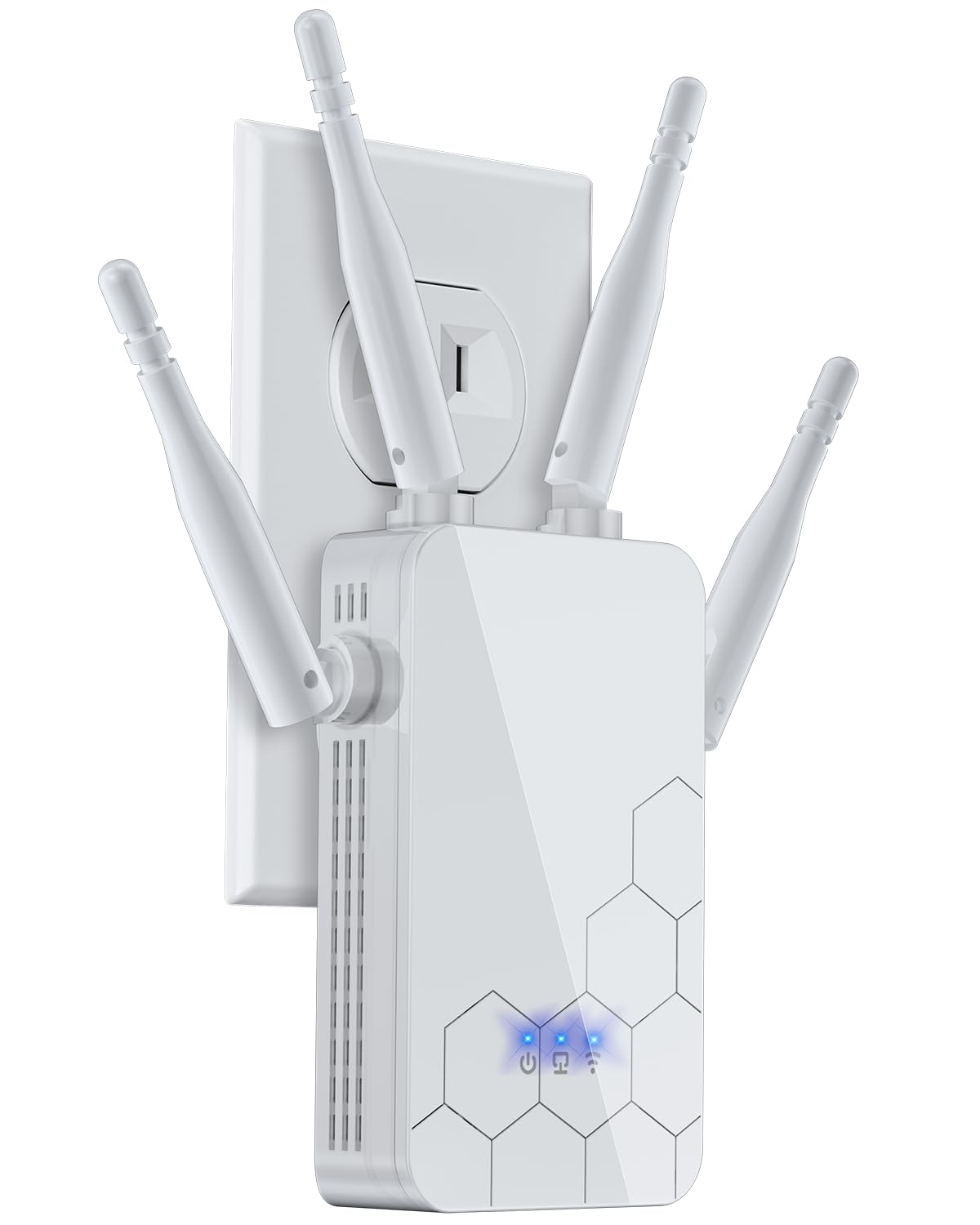
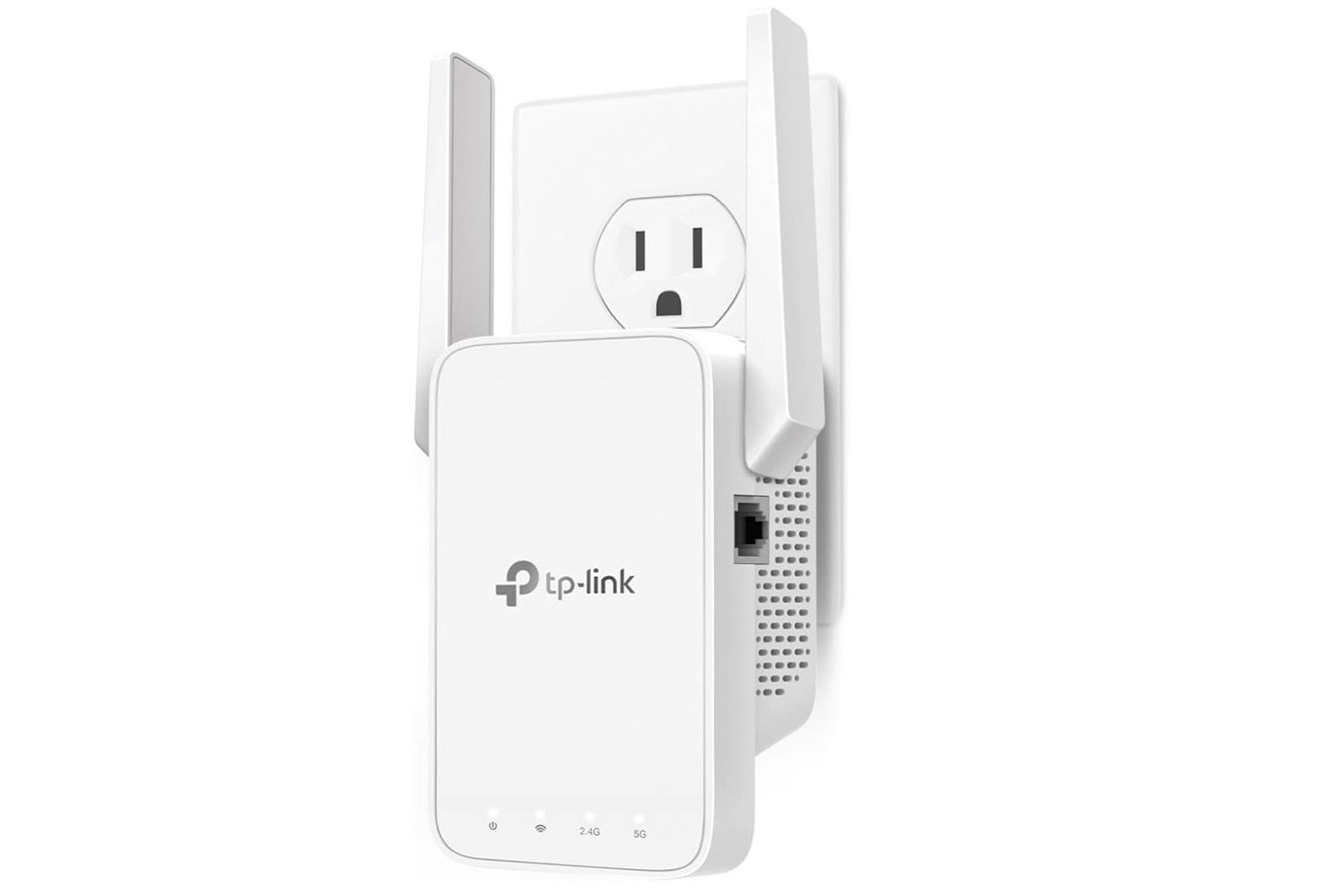
Use A Wi-fi Extender
If your smart lights are far from the router, a Wi-Fi extender helps. It boosts the signal to reach distant areas.
Place the extender between your router and the smart lights. This will improve connection and reduce delays.
App And Firmware Updates
Smart lights can stop working if their app or firmware is outdated. Keeping both updated helps fix many issues.
Updates improve performance and add new features. They also fix bugs that cause unresponsiveness.
Update The Smart Light App
Open your phone’s app store to check if the smart light app has an update. Updated apps connect better to your lights.
Regular updates fix bugs that may cause the app to freeze or not respond. Make sure the app runs the latest version.
- Go to Google Play Store or Apple App Store
- Search for your smart light app
- Tap “Update” if available
- Restart the app after updating
Check For Firmware Updates
Firmware is the software inside your smart lights. It controls how the lights work and communicate with your app.
Open the smart light app and look for firmware update options. Installing firmware updates can fix connection problems.
- Open the smart light app
- Find the settings or device menu
- Look for “Firmware Update” or “Device Update”
- Follow instructions to update the firmware
Reinstall The App
If the app still does not respond, try deleting and reinstalling it. This can remove corrupted files causing the problem.
Reinstalling gives you a fresh app version and clears errors. It can help the app connect better to your lights.
- Delete the smart light app from your phone
- Restart your phone
- Download and install the app again
- Log in and reconnect your smart lights
Advanced Solutions
Smart lights can stop responding despite basic fixes. Advanced solutions help restore control and functionality.
Try these steps if your smart lights still do not work after checking power and connections.
Factory Reset The Smart Light
Resetting the smart light clears settings and errors. It returns the light to its original state.
Find the reset button or follow the manual’s instructions. Usually, hold a button for 10 seconds.
- Turn off the light
- Press and hold the reset button
- Wait until the light flashes or changes color
- Release the button and set it up again
Replace The Smart Light
If the smart light still does not respond, it may be broken. Replacing it might be needed.
Make sure to buy a compatible light with your system. Check the brand and model before buying.
- Check if the light is under warranty
- Compare features with your current smart lights
- Buy from a trusted seller
- Install and test the new light
Consult Customer Support
Contact the manufacturer’s support if problems persist. They can offer specific help for your device.
Have your model number and purchase info ready. Support may guide you through advanced troubleshooting.
- Visit the official support website
- Use chat, email, or phone options
- Explain your problem clearly
- Follow their instructions carefully

Credit: www.reddit.com
Preventive Tips For Smooth Operation
Smart lights can stop working if not cared for properly. You can keep them running well by following some simple tips. These tips help avoid common issues.
Taking small steps will reduce the chance of your smart lights becoming unresponsive. Let’s look at how to keep your smart lights working smoothly.
Regular Updates
Keep your smart lights and apps updated. Updates fix bugs and add new features. These changes help your lights work better and avoid problems.
Check for updates often on your smart light app or device. Install them as soon as they are available to keep your system current.
- Open the app connected to your smart lights
- Check for firmware or software updates
- Download and install any updates found
- Restart the smart lights after updating
Stable Network Setup
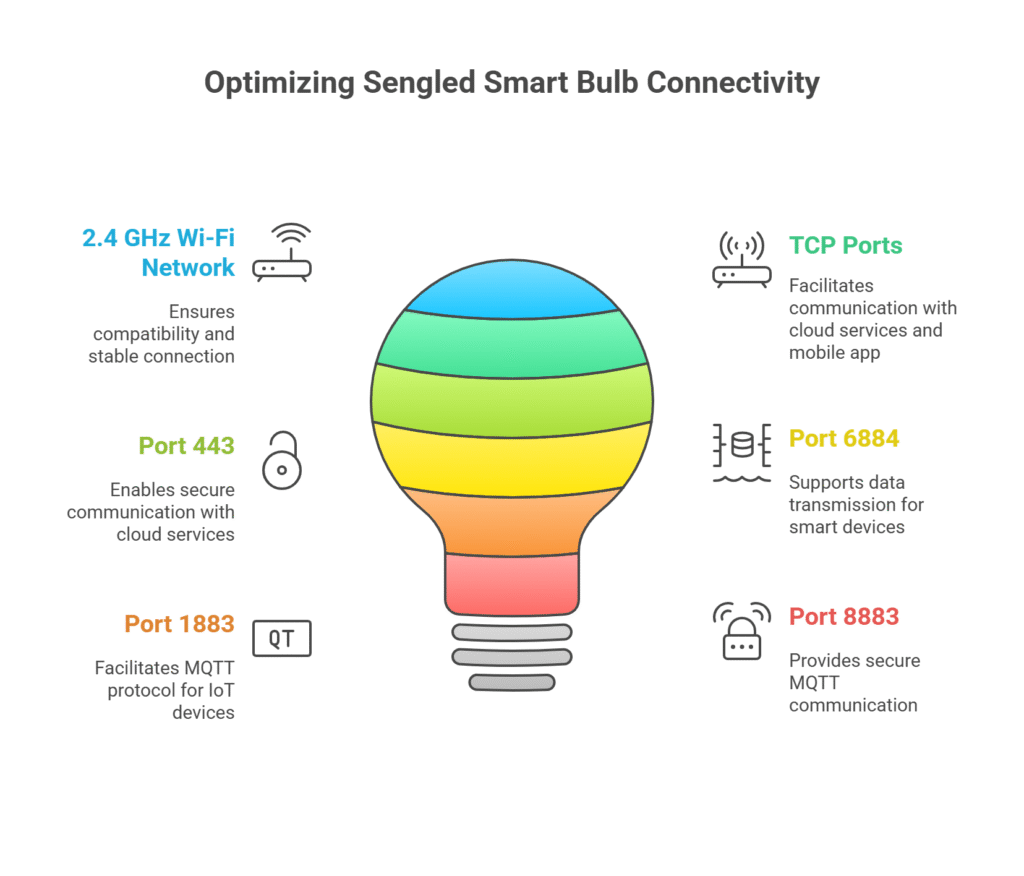
Smart lights need a strong and steady Wi-Fi connection. A weak network can cause delays or make the lights unresponsive. Use a reliable router and place it near the lights.
Limit the number of devices on the same network. This will reduce traffic and keep your smart lights connected without interruptions.
- Place your router close to smart lights
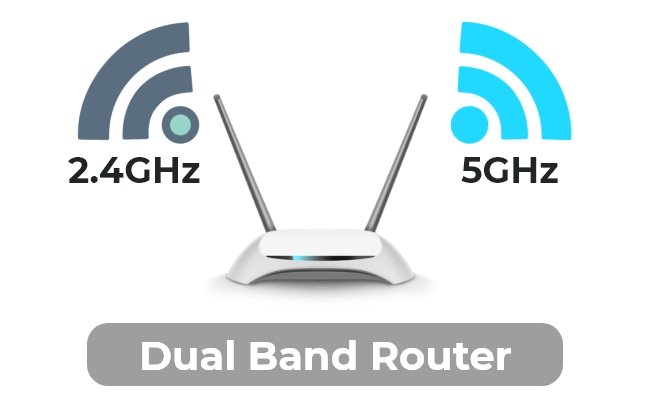
- Use a 2.4 GHz Wi-Fi band if supported
- Avoid network interference from other electronics
- Restart your router regularly to clear problems
Proper Installation Practices
Install your smart lights according to the instructions. Wrong installation can cause connection issues or damage. Make sure wiring and mounting are done correctly.
Use the right tools and parts for installation. Test the lights after setup to confirm they respond to commands. Fix any issues early to avoid bigger problems.
- Follow the user manual for installation steps
- Check power supply matches smart light requirements
- Securely attach lights to avoid loose connections
- Test lights with the app before finalizing setup
Credit: nestonyx.com
Frequently Asked Questions
Why Are My Smart Lights Not Responding?
Unresponsive smart lights often result from Wi-Fi issues, power problems, or app glitches. Check your network, power supply, and restart the app or device.
How To Reset Unresponsive Smart Lights?
To reset smart lights, turn them off and on multiple times or follow the manufacturer’s reset instructions. This clears errors and restores default settings.
Can Wi-fi Interference Cause Smart Light Issues?
Yes, Wi-Fi interference disrupts smart light signals. Ensure your router is close, avoid signal blockers, and use a stable 2. 4 GHz network for better connectivity.
What App Troubleshooting Helps With Smart Lights?
Close and reopen the smart light app, update it, or reinstall if needed. These steps fix bugs and improve device communication.
Conclusion
Smart lights can sometimes stop responding. This can be frustrating. But, fixing them is often simple. Start by checking the power connection. Ensure your Wi-Fi is working. Resetting the smart lights can also help. Always keep your smart lights updated.
Follow these steps to maintain a smooth operation. Smart lighting offers convenience and fun. With a little patience, your lights will shine bright again. Remember, small tweaks make a big difference. Enjoy your smart lighting experience!
20 min read